Step-by-Step: How to Register and Use the TreeTrace Web Service
This guide will walk you through the exact steps to register, get approved, and use your credentials with the TreeTrace API.
0) URLs
Development:
- Web Service: https://treetracesrv-dev.sylvamo.com
- Register Website: https://register-treetracesrv-dev.sylvamo.com
Production:
- Web Service: https://treetracesrv.sylvamo.com
- Register Website: https://register-treetracesrv.sylvamo.com
Note: Web Service is an API only; It does not have any web pages or graphical user interface accessible via a browser. All interactions with the service are performed programmatically via HTTP requests.
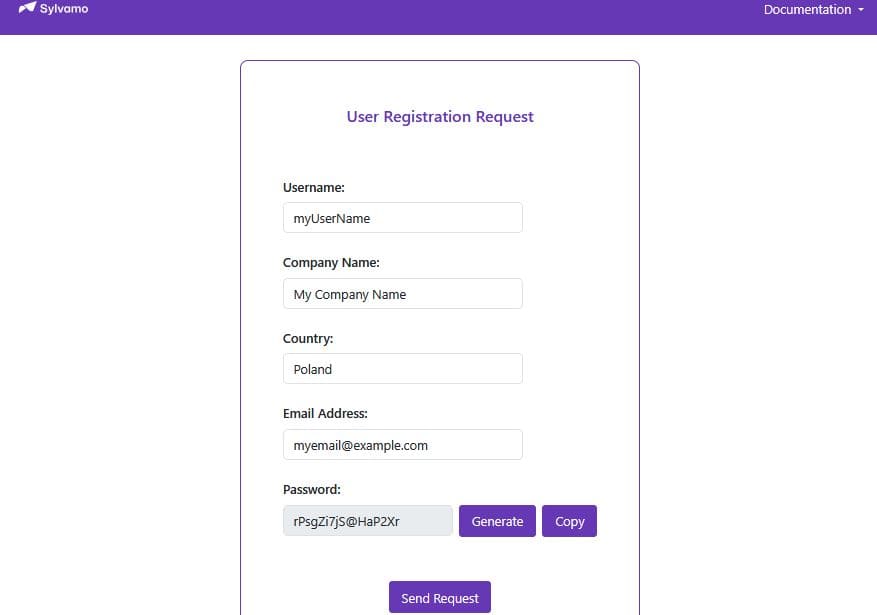
1) Register for Access
Go to the Registration Page:
Open the web app and navigate to the home page (/).Fill Out the Form:
- Enter your Username (must be unique).
- Enter your Company Name.
- Select your Country from the dropdown.
- Enter your Email Address.
- Click Generate to create a secure password.
- Copy and save your password somewhere safe.
You will not be able to see or recover it later! - Click Send Request to submit your registration.
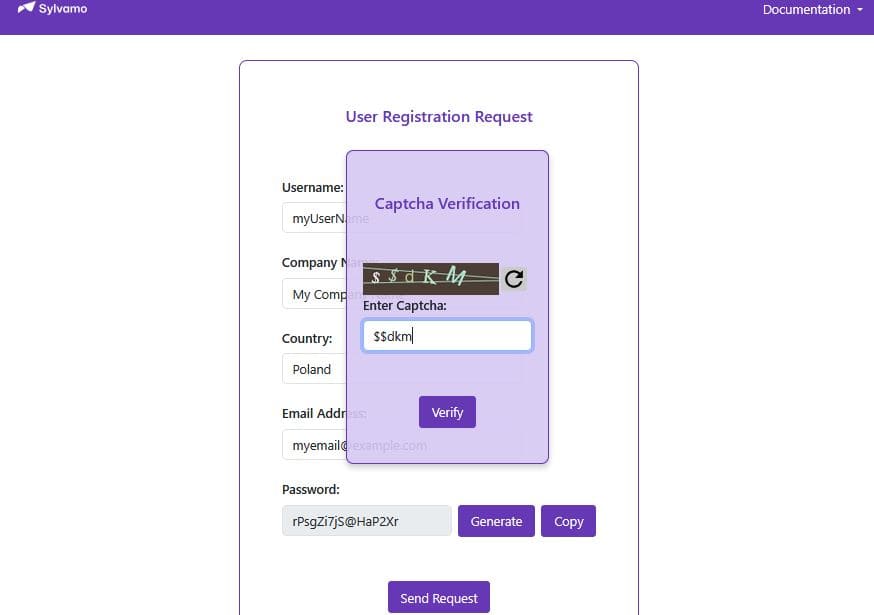
Captcha Verification:
- Complete the captcha challenge and click Verify.
2) Wait for Admin Approval
What happens now?
Your registration is pending.
Please wait until the administrator review your request. You will receive an email once your account has been activated.No access yet:
You cannot use the API until you are approved.
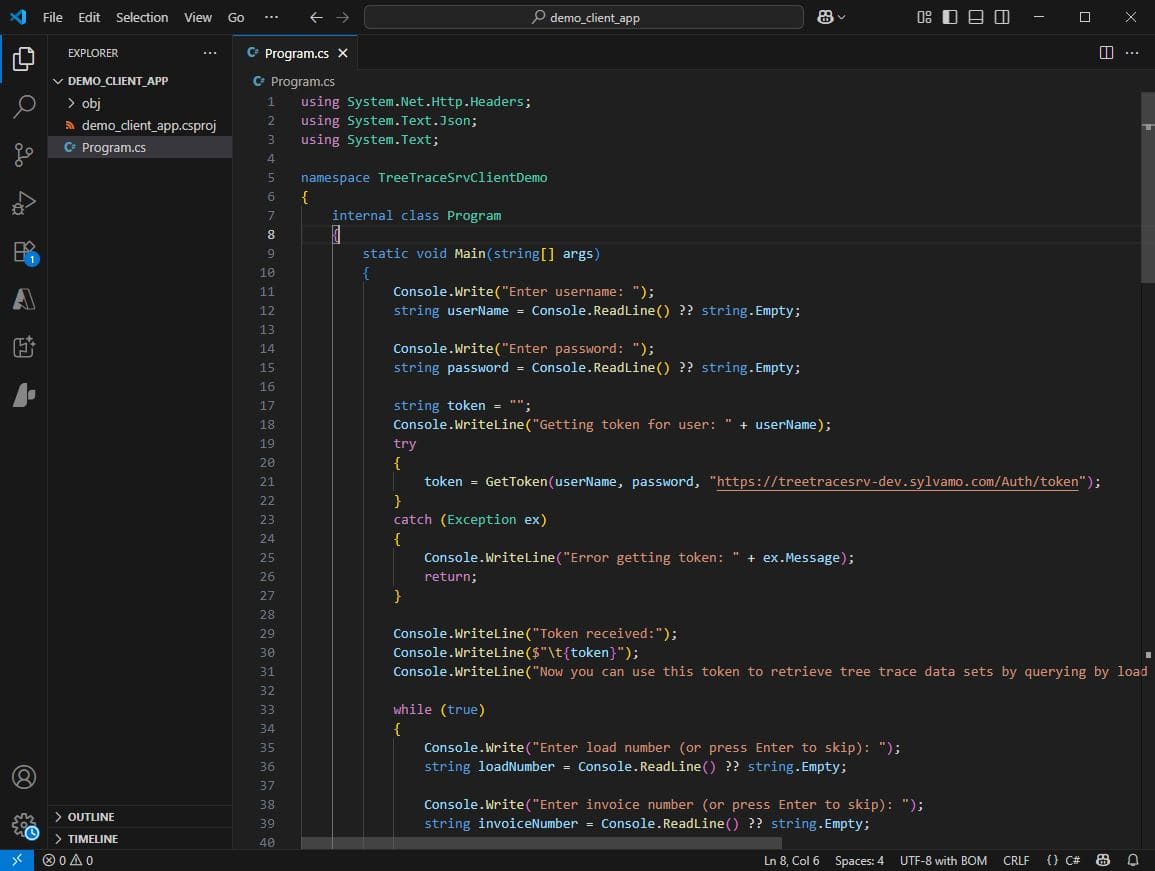
3) Run the Demo Client App in VS Code
Note: This guide uses Visual Studio Code (VS Code) to demonstrate how to build the demo app, as it is a free, cross-platform tool available on Windows, macOS, and Linux. If you prefer to use Visual Studio, you can do so - the process is very similar and does not require separate instructions.
- Open Visual Studio Code.
- Create a new file (for example,
DemoClientApp.cs). - Copy the demo client code from the
/cscodedemopage or the provided example. - Paste the code into your new file and save it.
- Open a terminal in VS Code and run:
dotnet run DemoClientApp.csor, if you have a project, add the file to your project and run:dotnet run - Follow the prompts in the console to enter your username and password.
4) Use Your Credentials in the Demo Client
Enter your credentials:
- Username: The one you registered with.
- Password: The one you generated and saved.
Get a Token:
The client will use your credentials to request an authentication token (it's valid for 30 min).Query the API:
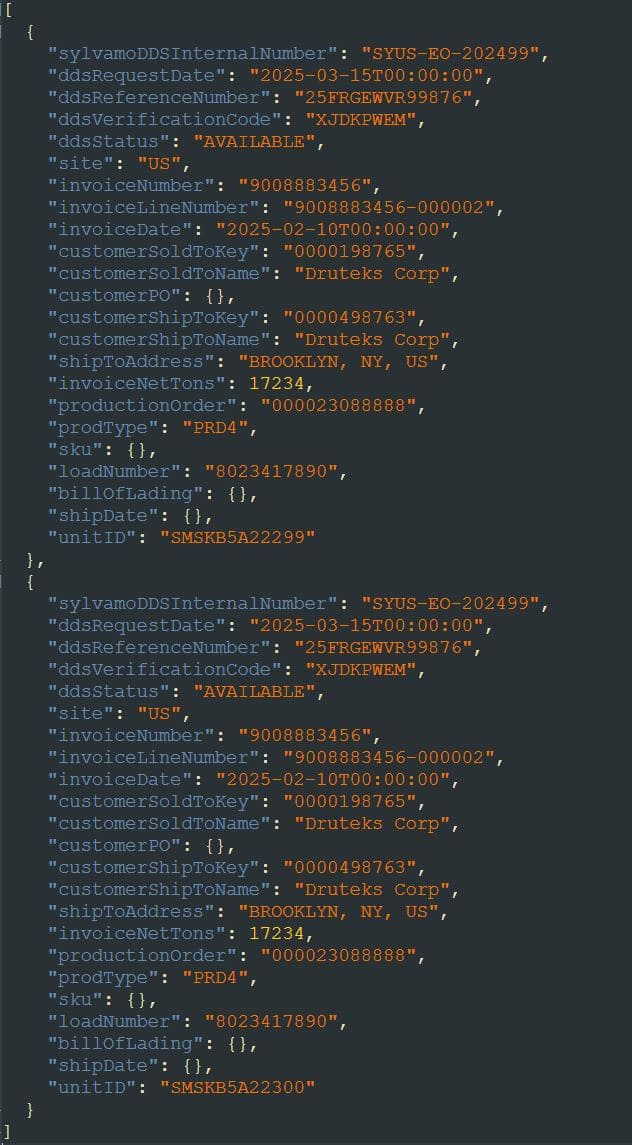
Use the token to request tree trace data by load or invoice number or Customer PO number.
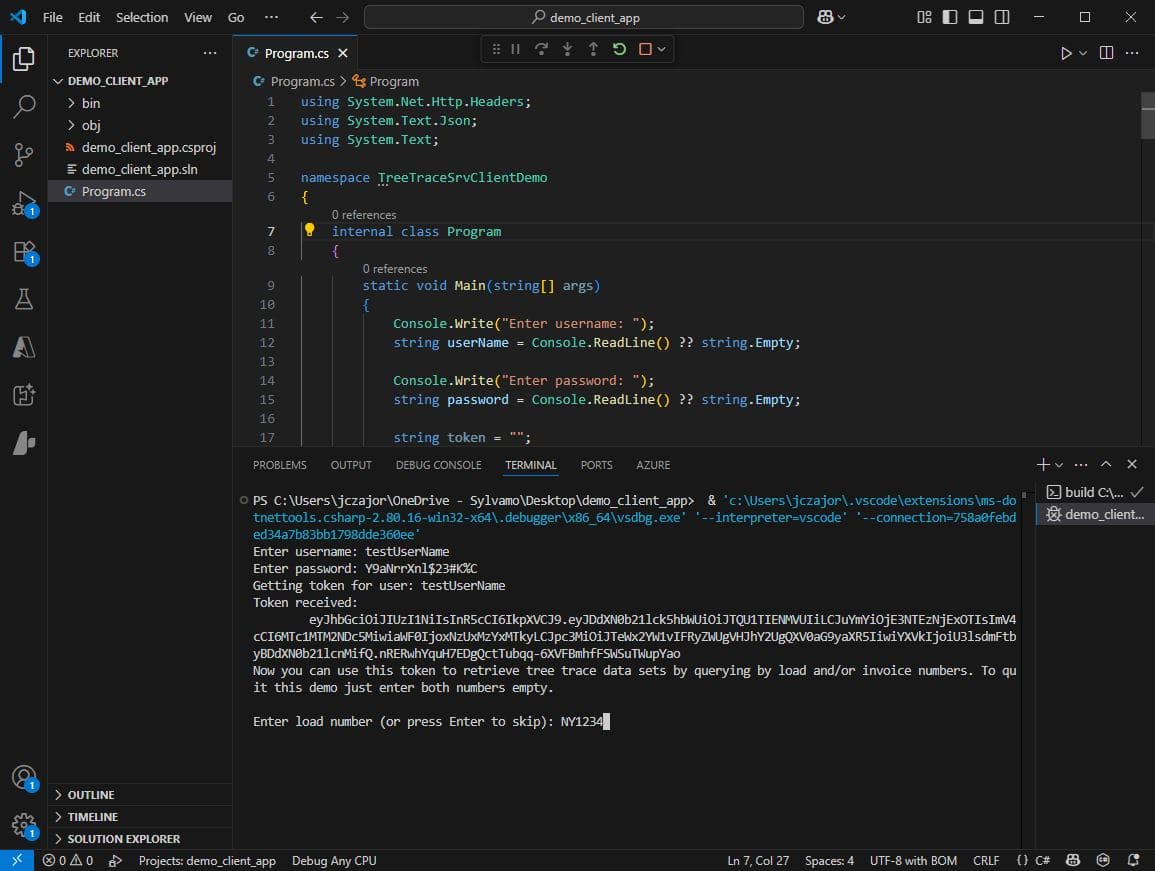
This is how the sample output data will look like:
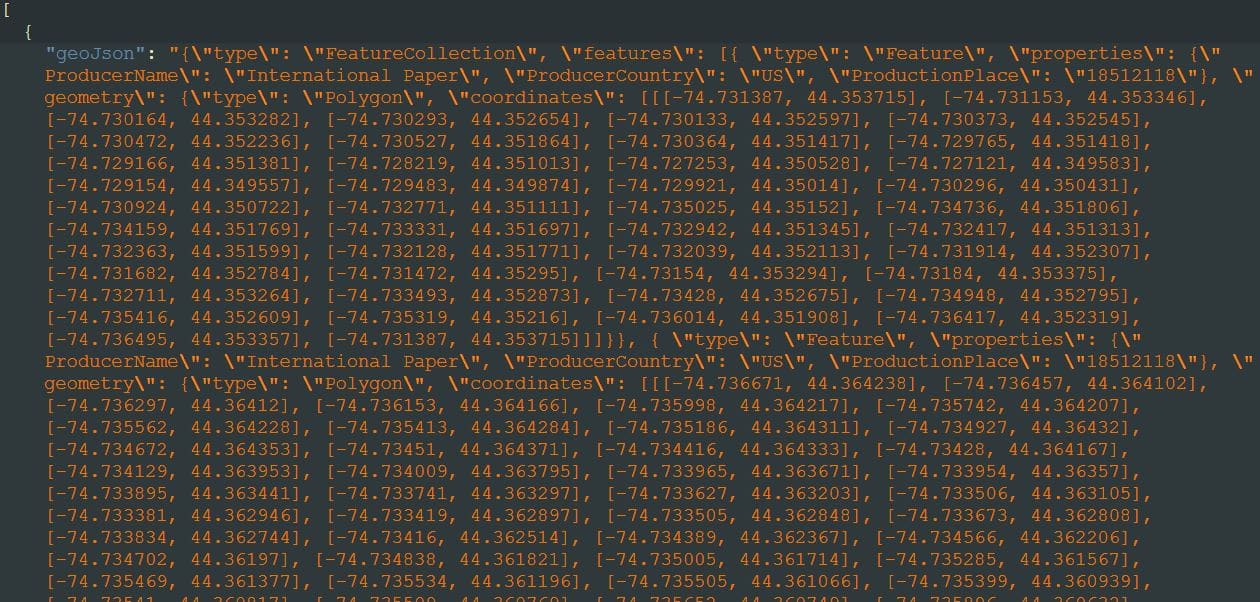
Then the demo app will ask you if you want to retrieve GeoJson as well. If you answer "y" or "yes" you can expect output like this:
You can integrate the TreeTrace Web Service with your own application.